Recording Plugin Manual
If you use a DAW such as Pro Tools, Studio One, or Cubase, and you can't change your DAW's audio input, this tutorial is for you.
If you use Ableton, Logic Pro, or a DAW that allows you to select separate inputs and outputs, follow the Simple Recording Tutorial instead (it's much simpler)
If your DAW requires the same device as both input and output, you can record audio from Muse with the Muse Recording Plugin without changing your I/O setup.
1. Create an AUX track (or an input channel in Cubase)
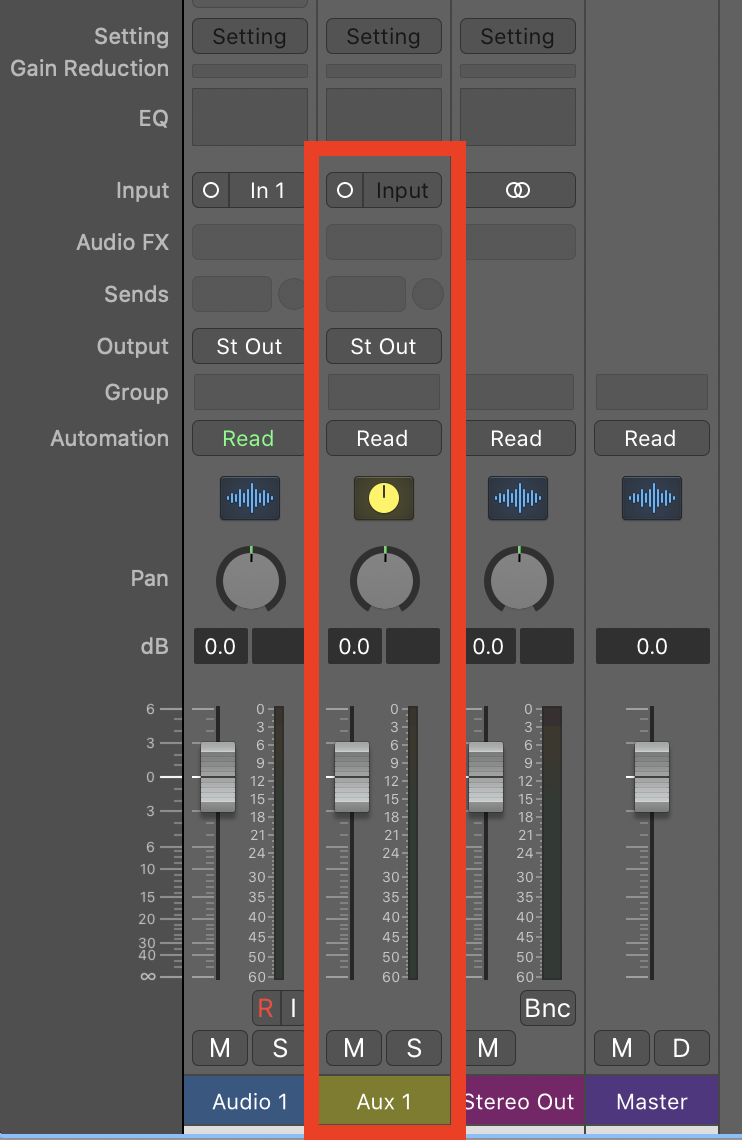
2. Assign an audio input to the AUX track
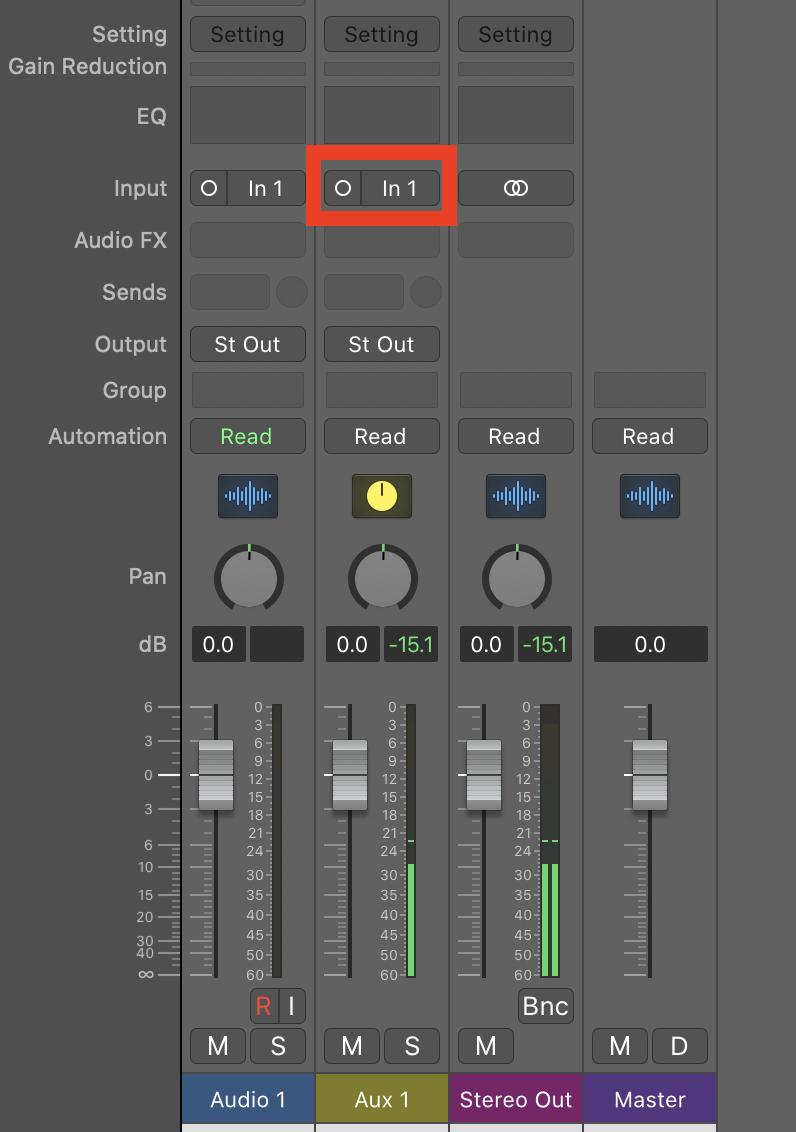
IMPORTANT NOTE: You need to assign an audio input that has an audio signal present, or the audio will not be recorded. Pro Tools users have the option to disable "Dynamic Plug-in Processing" in Setup > Playback Engine instead.
3. Add the Muse Recording Plugin to the AUX track
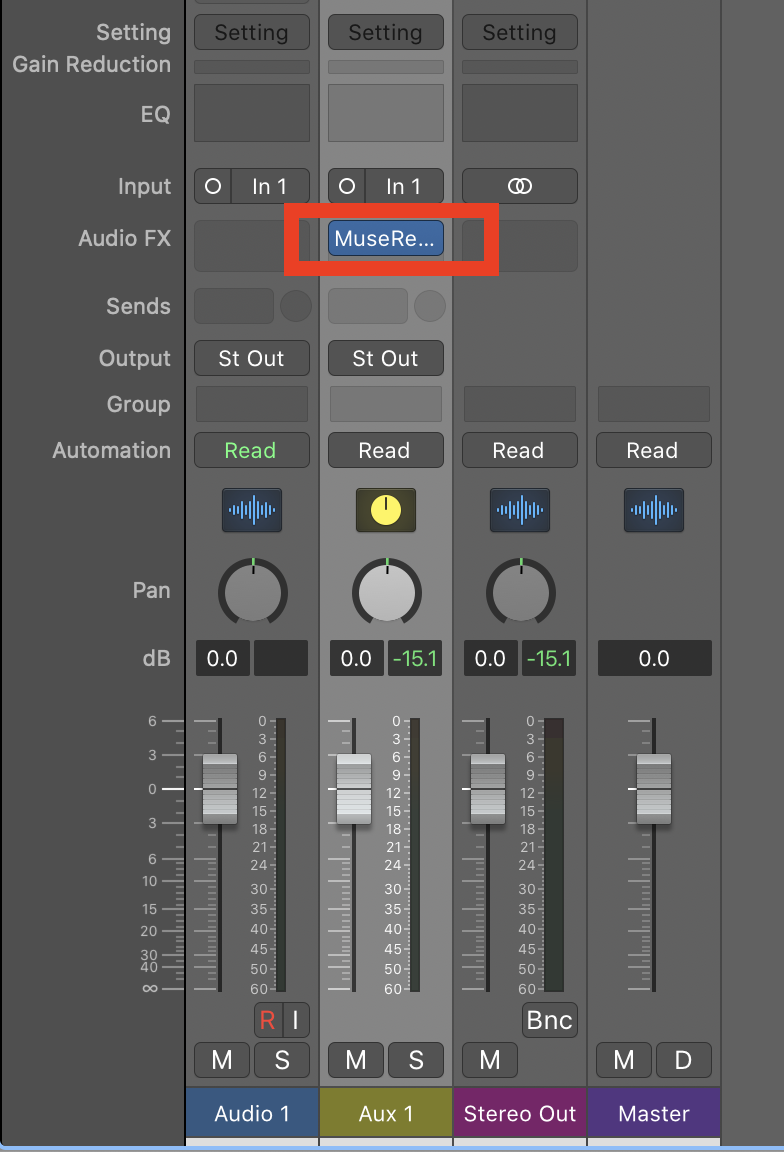
NOTE: You only need one instance of the Muse Recording Plugin running. Multiple plugins can cause unwanted behavior and affect the status messages in the plugin.
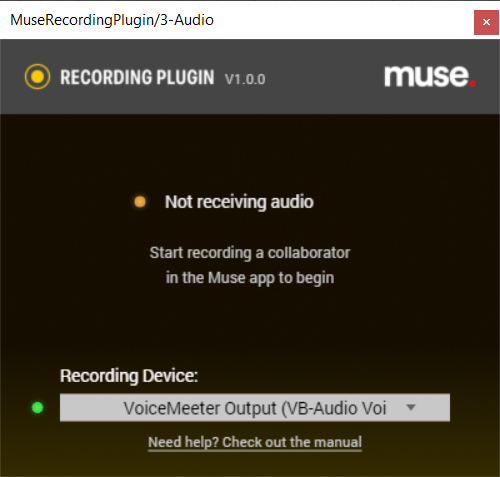
On Mac, audio will pass through the Muse Recording device to the plugin. On Windows, you need to select the recording device you want to use.
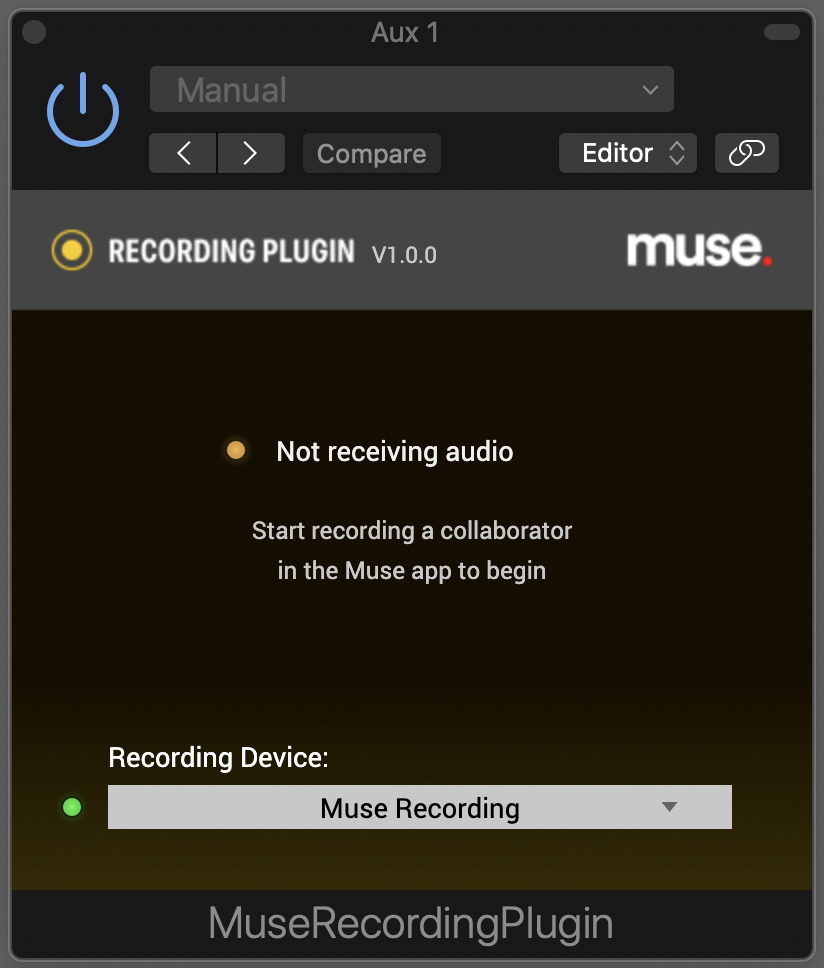
IMPORTANT NOTE: Windows users will need to use a separate device for recording and for sharing DAW audio. We recommend downloading VoiceMeeter or Hi-Fi Cable for recording, so that you can use VB-Audio Cable to share DAW audio. Be sure to follow instructions on these Virtual Audio devices before use.
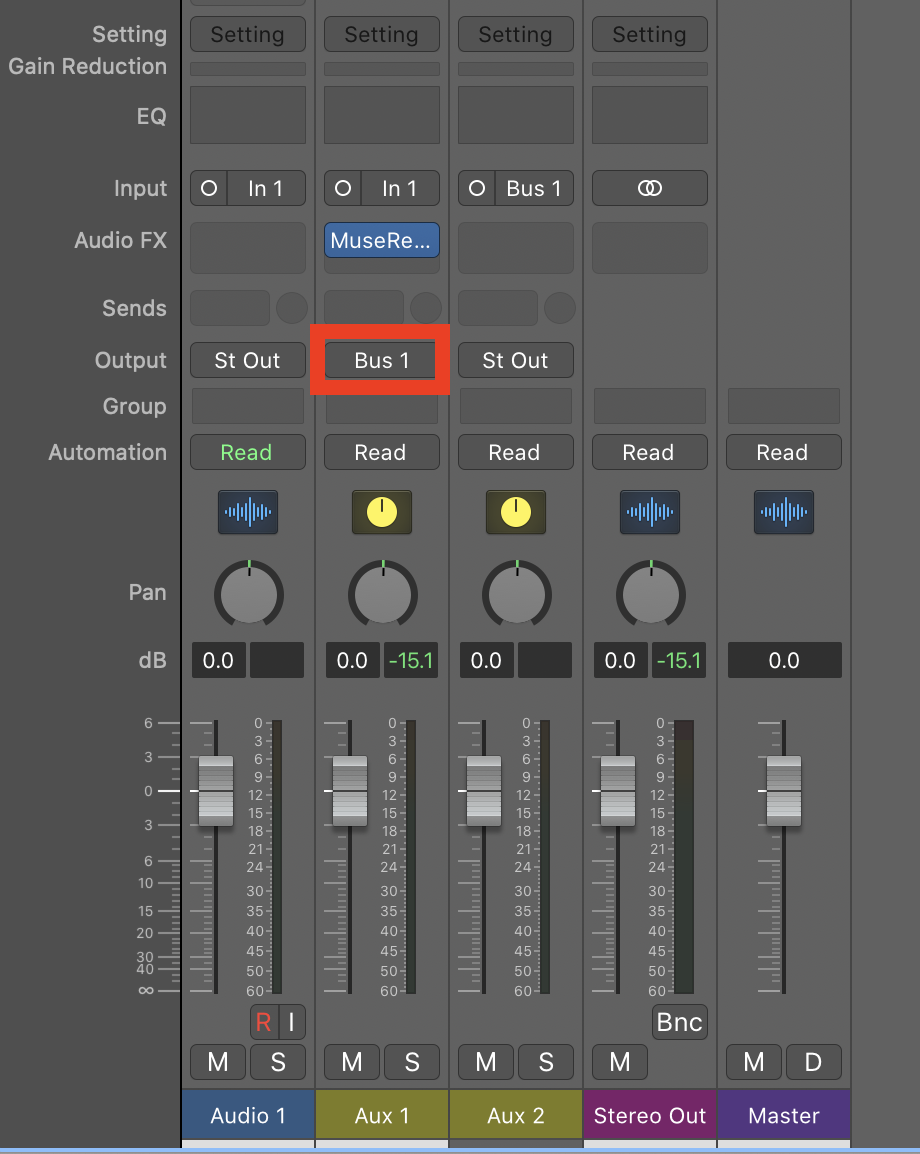
4. Assign the output of the AUX track to a bus
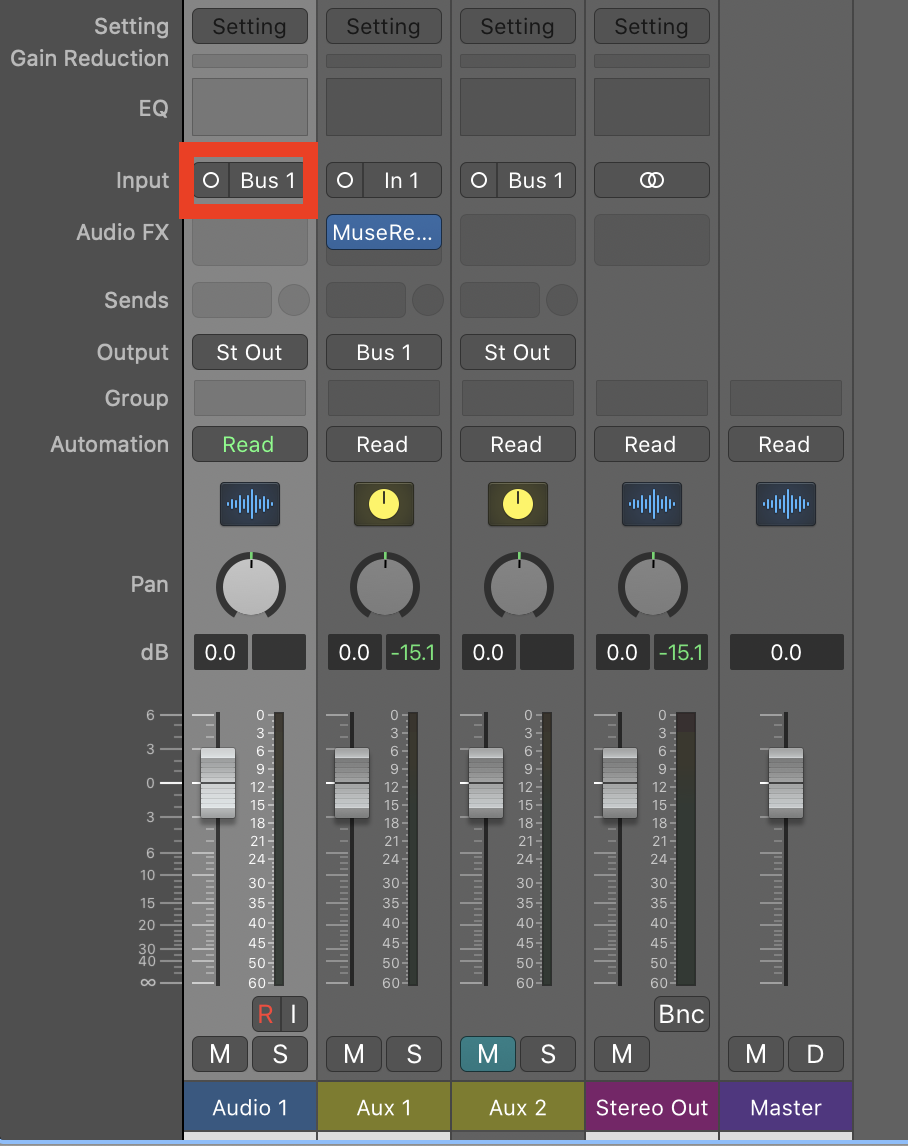
5. Create an audio track for recording, and set the input of the audio track to the same bus
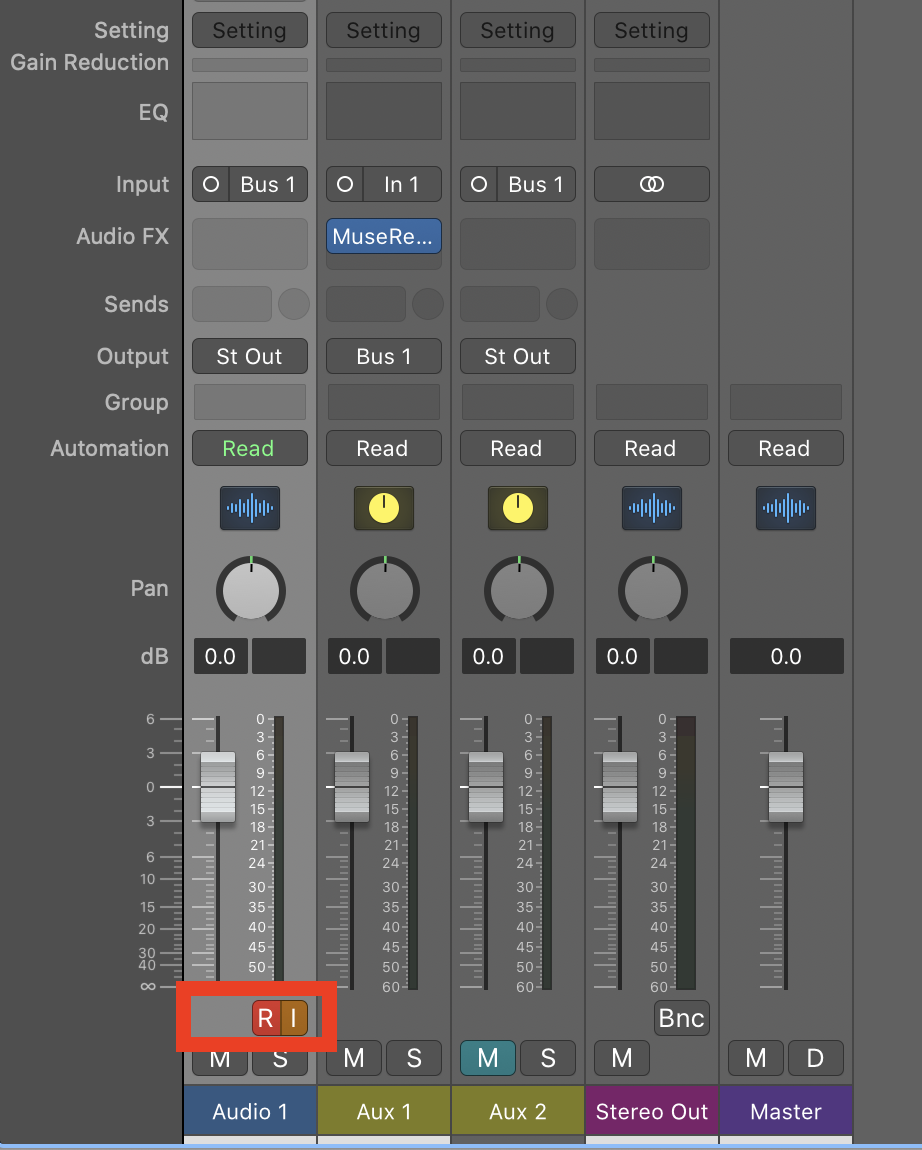
6. Arm the audio track. Now you are ready for recording.
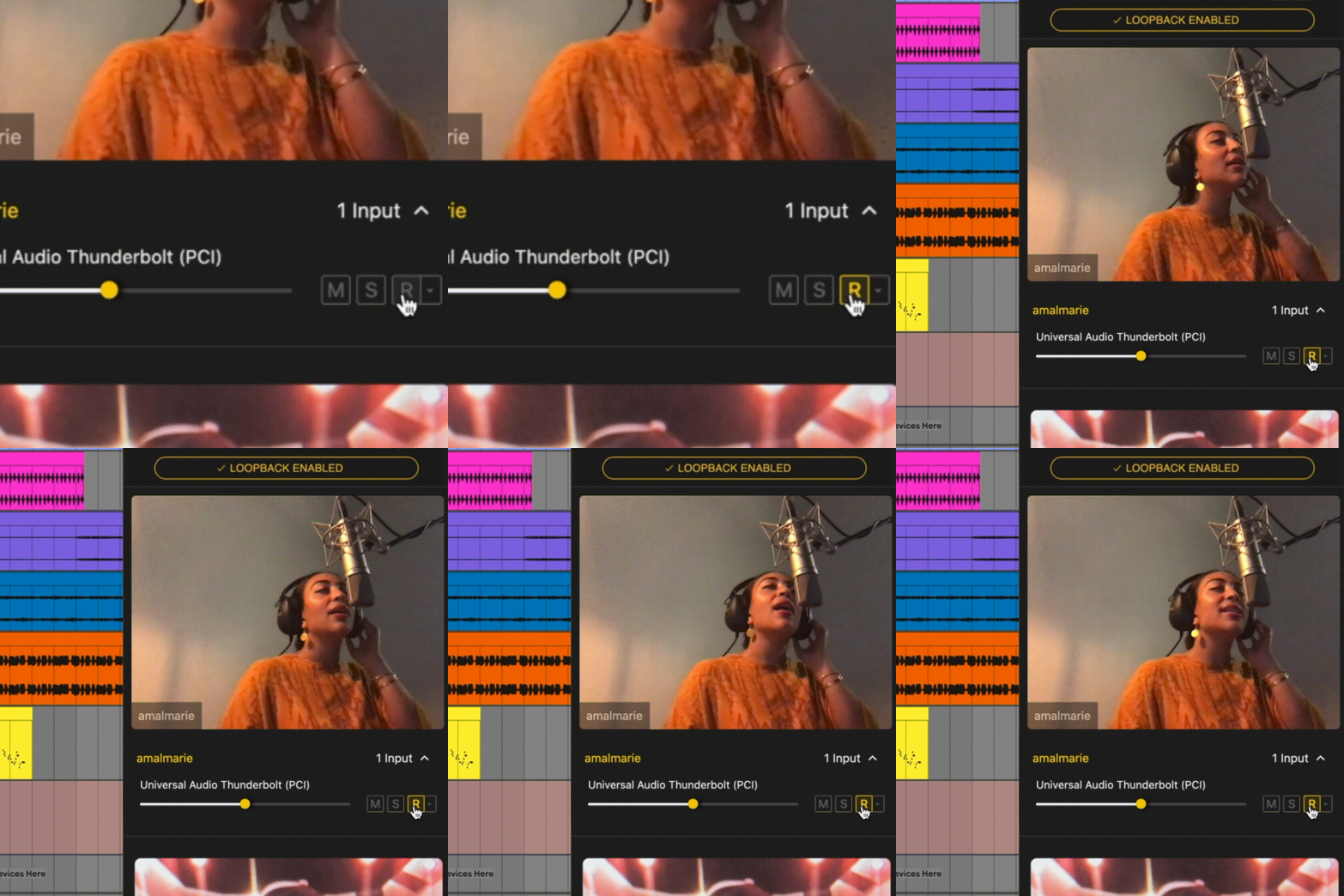
7. Click the "record" button next to a device in Muse to begin passing audio to the plugin.
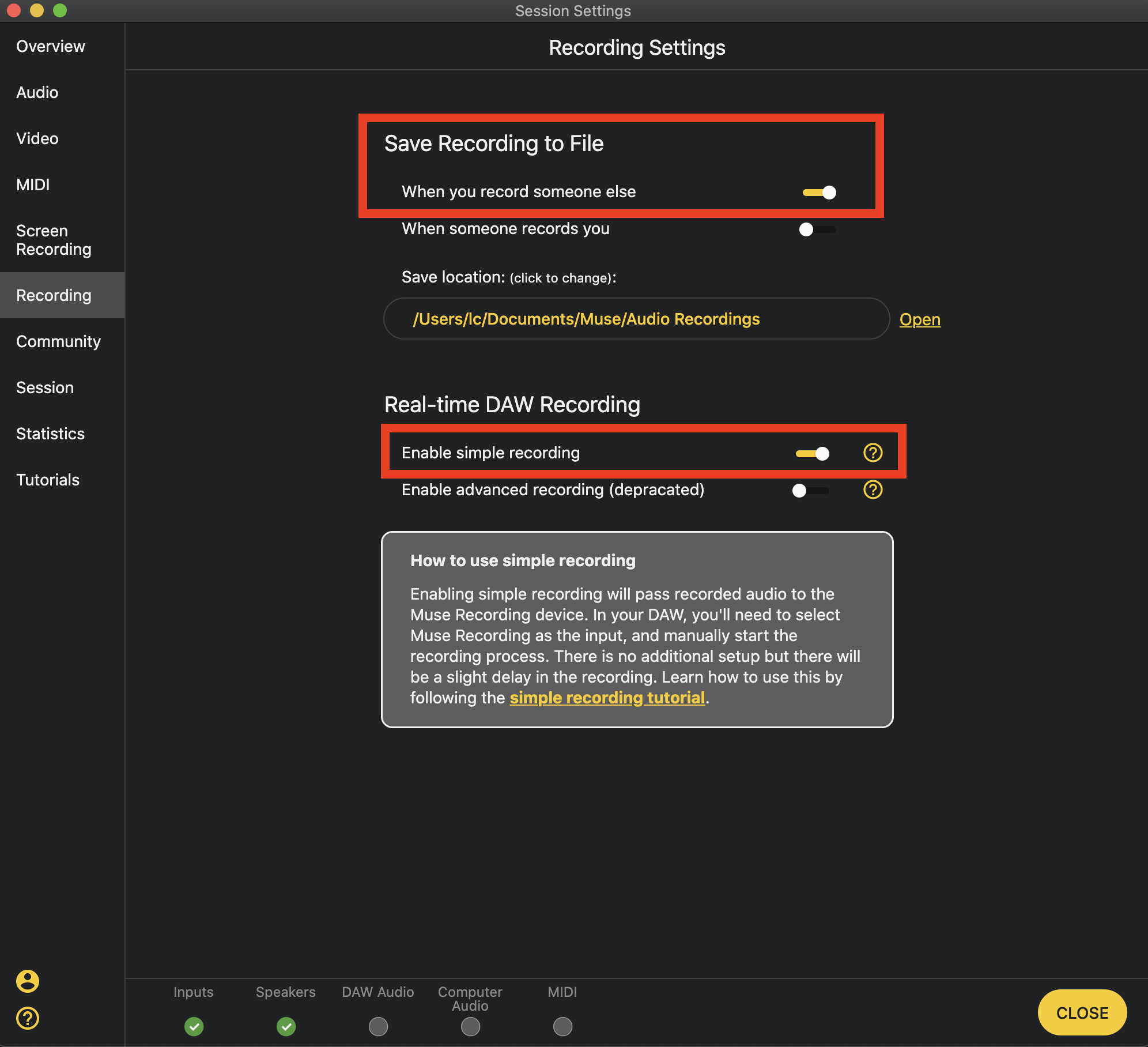
IMPORTANT NOTE: Simple Recording MUST be enabled in Muse's recording settings or the Recording Plugin won't work. By default, Muse saves recorded audio to a file. You can turn this off in settings.
8. Begin recording in the DAW
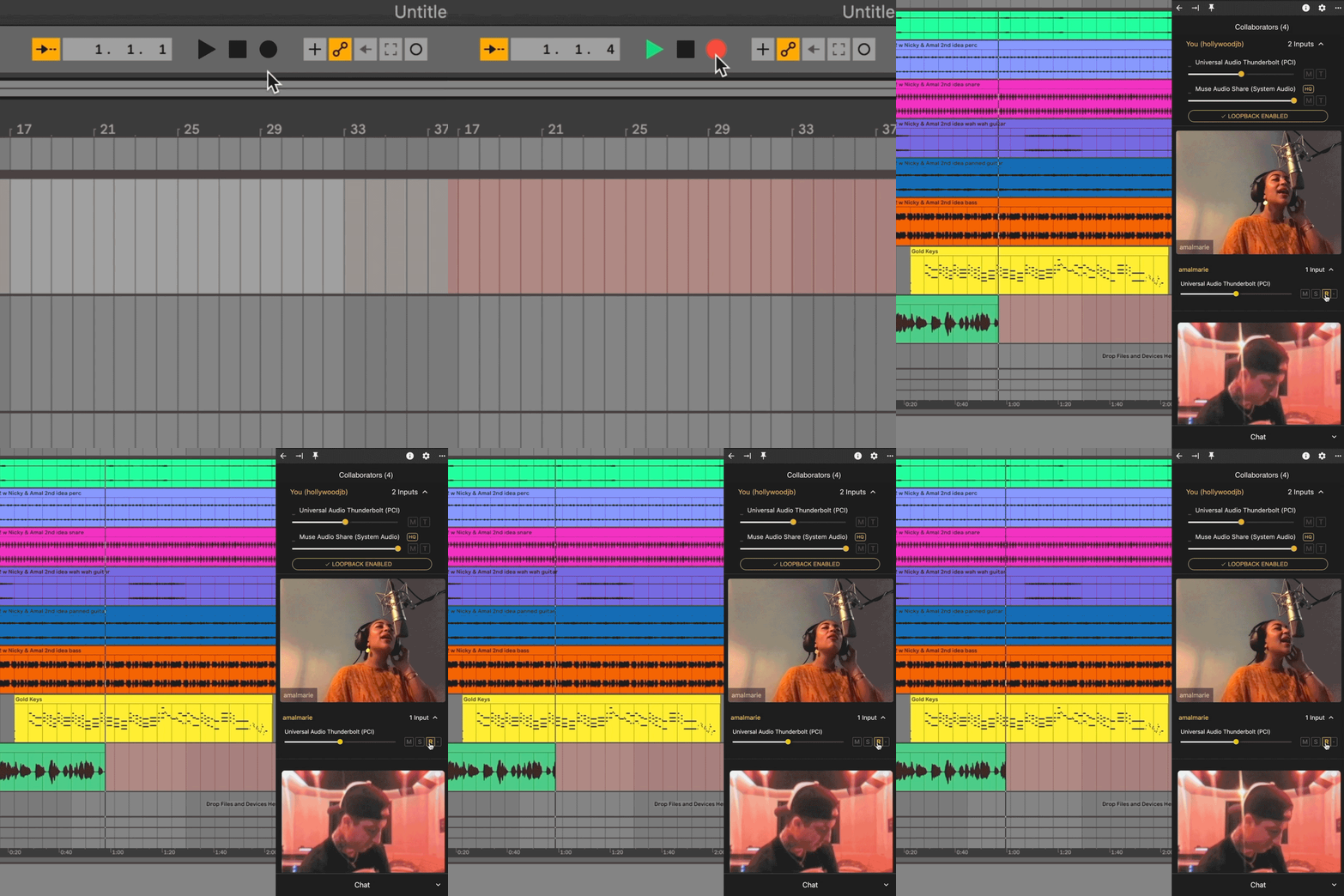
NOTE: Network conditions can affect the recording. There will be some delay and network blips will also be recorded.